
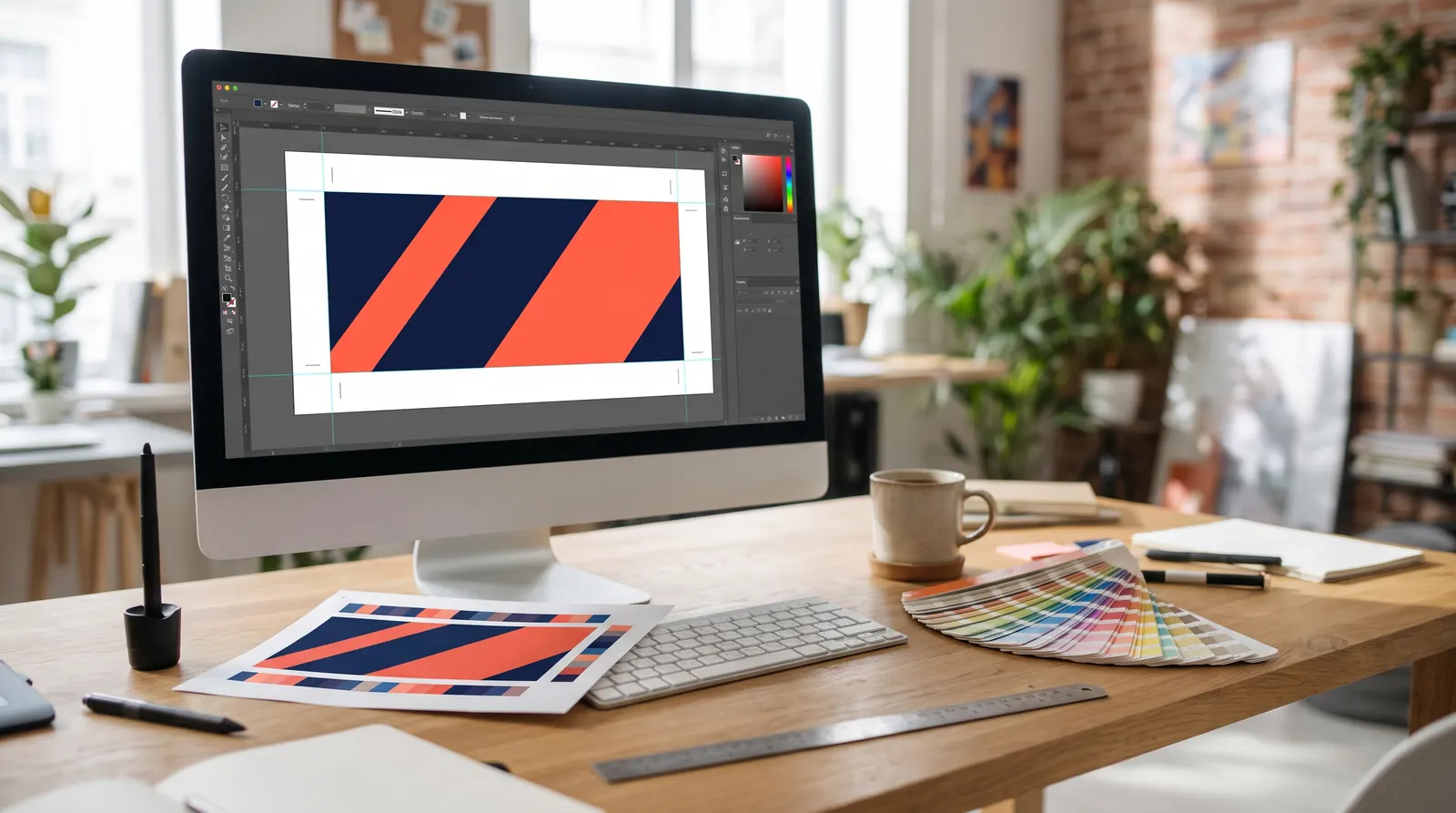
What resolution for large-format printing: the short answer
How sharp a print looks depends on how far away you stand. From 50 cm the eye picks out fine detail; from 5 m that detail merges into a smooth surface. That is why a framed poster needs far more pixels per inch than a banner on a fence. The table shows the full-size values large-format printers use in practice.
| Viewing distance | Typical displays | Resolution at 1:1 |
|---|---|---|
| up to 0.5 m | poster frame by a counter, menu, hand-held print | 200–300 ppi |
| 0.5–1.5 m | A-board, A1 or B1 poster, promotional counter | 150–200 ppi |
| 1–3 m | roller banner, exhibition stand wall, X-banner | 100–150 ppi |
| 3–10 m | stage backdrop, large display wall, banner in a hall | 50–100 ppi |
| 10–30 m | banner on a fence or building | 25–50 ppi |
| over 30 m | building wrap mesh, billboard | 10–25 ppi |
These figures apply to photos and other raster images. Text, logos and vector shapes are sharp at any size. If a display is seen from several distances, such as a stand wall viewed from the aisle and then up close during a conversation, use the value for the shortest distance.
DPI, PPI and printer resolution: two different things
Everyone talks about "dpi" with their printer, but the word covers two separate ideas.
- PPI (pixels per inch) — how many pixels of your file fall on each inch of the print. This is what you set in your layout, and it determines how sharp photos look.
- DPI (dots per inch) — how many ink droplets the machine places per inch. Large-format printers typically work at anywhere from several hundred to over a thousand dpi and build each file pixel from many droplets.
An inch is 2.54 cm. A "72 dpi" tag in a photo's metadata says nothing about its quality; what matters is the pixel count relative to the print size. A photo 6000 px wide gives 300 ppi at a print width of about 51 cm and 75 ppi at about 2 m, even though it is the same file.
Viewing distance: a simple formula
An eye with normal visual acuity resolves detail down to roughly one minute of arc. That gives a handy rule of thumb:
limiting resolution [ppi] ≈ 87 ÷ viewing distance [m]
At 1 m the eye stops resolving detail at around 87 ppi, at 2 m around 44 ppi and at 10 m around 9 ppi. These are limits, so in practice they are multiplied by 1.5–2. People step closer than you expect, and photos with fine detail need headroom. That is where the table above comes from: a roller banner viewed from 1–2 m gets 100–150 ppi.
The formula also works in reverse. If you only have a photo with a limited pixel count, work out the distance from which it will look sharp and decide whether it suits the display.
How many pixels you need: a quick reference
To calculate pixels, use: size in cm ÷ 2.54 × ppi. The table covers the visible format. For roller banners and display walls, add the extra length and bleed shown in the graphic size on the product page.
| Display and format | Resolution | Pixel dimensions |
|---|---|---|
| A1 poster, 59.4 × 84.1 cm | 150 ppi | 3508 × 4967 px |
| B1 poster, 70.7 × 100 cm | 150 ppi | 4175 × 5906 px |
| Roller banner 85 × 200 cm | 100 ppi | 3346 × 7874 px |
| Roller banner 85 × 200 cm | 150 ppi | 5020 × 11 811 px |
| Display wall 300 × 230 cm | 75 ppi | 8858 × 6791 px |
| Banner 600 × 300 cm | 50 ppi | 11 811 × 5906 px |
Poster sizes for A-boards and pavement signs and frames are covered in our guide to A0, A1, A2, A3 and A4 sizes. For example, the Aurora A-board takes A2, A1, A0 and B2 posters, and the Hampton A-board also takes B1. An 85 × 200 cm roller banner file at 150 ppi in CMYK is around 240 MB uncompressed, and a 600 × 300 cm banner at 50 ppi around 280 MB. With big formats, extra resolution quickly stops making sense.
Camera and phone photos: are they good enough?
The most common question is whether a particular photo will work on a roller banner or display wall. The answer lies in effective resolution, meaning the pixel count once the photo has been scaled to its size in the layout.
- 24-megapixel camera (6000 × 4000 px) — gives about 181 ppi across the height of an A1 poster and about 76 ppi across the full 200 cm height of a roller banner. Fine for a banner background, but a product shot viewed up close will look soft.
- 12-megapixel phone (4032 × 3024 px) — gives about 51 ppi over 200 cm. Suitable for a background seen from 3 m or more.
- Website image (1920 px wide) — stretched to 85 cm it gives about 57 ppi. Too little for a pull up banner viewed from a metre away.
Buy stock photos in the largest size available. A logo downloaded from a website is almost always too small, so ask for a vector version (PDF, EPS or SVG) or the file from the brand guidelines.
Upscaling: what it can and cannot do
Image editors can enlarge photos, for example Photoshop's Image Size dialogue with Preserve Details 2.0, or Super Resolution in Camera Raw, which doubles the dimensions in each direction. Upscaling smooths edges, but it cannot recreate detail that was never in the file. It works for enlargements of 1.5–2 times and for background images. Before printing the whole graphic, check a section at 100% or order a test print.
Vectors, text and effects: where resolution does not apply
Vectors describe shapes mathematically, so a logo in a PDF printed 6 m wide is as crisp as on a business card. Always create text, icons, lines and flat colour areas as vectors. Keep only photos and effects that cannot be built any other way as raster images.
- Illustrator effects — drop shadows, blurs and glows are rasterised at the resolution set in Document Raster Effects Settings. Set it to what the display needs at the scale of your document.
- PDF export — make sure downsampling does not reduce photos below the values in the table.
- 1:10 scale — when walls and banners are designed at 1:10, images in the document need ten times the resolution. A banner that needs 50 ppi at full size needs 500 ppi in a 1:10 document.
- Checking — InDesign's Info panel shows the effective resolution of each image, and Preflight in Acrobat Pro will flag low-resolution images.
Resolution, materials and print method
The same file resolution looks different on different materials. Smooth blockout and poster paper show fine detail clearly. On fabric, the weave slightly softens very small elements, so going above 150 ppi brings no visible gain. On perforated mesh part of the surface is holes, so these displays are designed with large, simple elements.
Light boxes and backlit walls draw the eye, so people tend to walk right up to them. For backlit displays, stay at the top of the range in the table. To choose the right substrate, see our guide to large-format print materials, and for colour spaces read CMYK or RGB for print.
Common resolution mistakes
- Setting 300 dpi for everything — a 6 × 3 m banner at 300 ppi is over 70,000 pixels wide. Nobody can open such a file comfortably, and the extra sharpness is invisible from a distance.
- Changing only the dpi value — typing 150 instead of 72 in Image Size with resampling switched off only changes the print size, not the quality of the photo.
- A logo from the internet — a small bitmap stretched across a roller banner shows stepped edges. Use a vector file.
- A screenshot instead of the original — a screenshot has screen resolution and is only good for a small element seen from far away.
- Not checking at 100% — a full-banner preview on screen hides blur. Inspect sections at a zoom level that matches the real print size.
Choosing a display and preparing the print
The display sets the graphic size and therefore the number of pixels you need. Our roller banners include the Standard roller banner in widths from 85 to 150 cm and the Pro roller banner, which also comes in a 200 × 200 cm format. Our display walls offer larger backdrops, such as the fabric Atlantis straight display wall, while posters at the entrance go into A-boards. A lighter alternative to a pull up banner is the X-banner Standard.
Standard roller banner – pull up stand 85–150 cm
from €26.98 incl. VAT6 versions
In stock — ships in 1–2 business days
Pro roller banner – pull up stand 85–200 cm
from €55.00 incl. VAT5 versions
In stock — ships in 1–2 business days

Atlantis straight display wall
from €145.66 incl. VAT4 versions
In stock — ships in 1–2 business days
- Before Black Week
A-board Aurora – A2, A1, A0, B2
from €52.09€57.87incl. VATLowest price in the 30 days before the discount: €57.876 versions
In stock — ships in 1–2 business days
You can ask us about printing the graphic in a quote request or have it printed by any print shop. Every product page lists the graphic size. If you need several displays for a stand or agency pricing, send a quote request. For a step-by-step file set-up, read our guide to roller banner artwork.
Frequently asked questions
Is 72 dpi enough for large-format printing?
A 72 dpi tag in the metadata means nothing on its own; what counts is the pixel count relative to the print size. If a photo genuinely has 72 ppi at full size, it is enough for a display viewed from about 3–5 m, such as a stage backdrop or a large banner in a hall. On a roller banner viewed from 1–2 m it is too little for product photos, though a background image may still look fine.
What DPI does a roller banner need?
A roller banner is viewed from 1–3 m, so 100–150 ppi at full size is enough. For a visible area of 85 × 200 cm that means roughly 3346 × 7874 px to 5020 × 11 811 px. A higher resolution will not look any sharper, but it will make the file much larger. Create logos and text as vectors. We list the exact graphic size, including the extra length for the base, with each product.
What resolution for a banner on a fence or building?
A banner viewed from 10–30 m usually needs 25–50 ppi at full size, and building mesh seen from the street as little as 10–25 ppi. From that distance the eye cannot resolve finer detail. Large lettering, strong contrast and a simple image matter far more than resolution. These formats are often designed at 1:10 scale, in which case the resolution inside the document must be ten times higher.
Can I increase a photo's resolution in Photoshop?
You can enlarge a photo, for example with Preserve Details 2.0 in the Image Size dialogue or with Super Resolution in Camera Raw. The software smooths edges and hides visible pixels, but it cannot recreate detail that was never captured. It works for enlargements of 1.5–2 times and for background images. Before printing, inspect a section at 100% or order a test print.
Is 300 dpi always the best choice?
No. 300 ppi is the standard for print viewed at arm's length, such as catalogues and leaflets. In large-format printing it rarely improves anything, while files grow to hundreds of megabytes or more. A roller banner only needs 100–150 ppi, a display wall 75–150 ppi and a banner seen from afar 25–50 ppi. The exception is posters viewed up close.